 North Star Gate
 Treo
Before you begin
On iPhone, choose Library, Sync, or Settings from the tabs. On iPad, choose them from the sidebar. Files access is granted through the system picker. A file provider may require its own account or internet connection. Optional Syncthing connections share data with configured peers and may require Local Network permission. Camera access is requested only if you choose Scan QR code to enter a computer Device ID; entering or pasting the ID does not need camera access.
Write your first document
- Open Library and tap +.
- Choose New Markdown file.
- Enter your text.
- Tap Save.
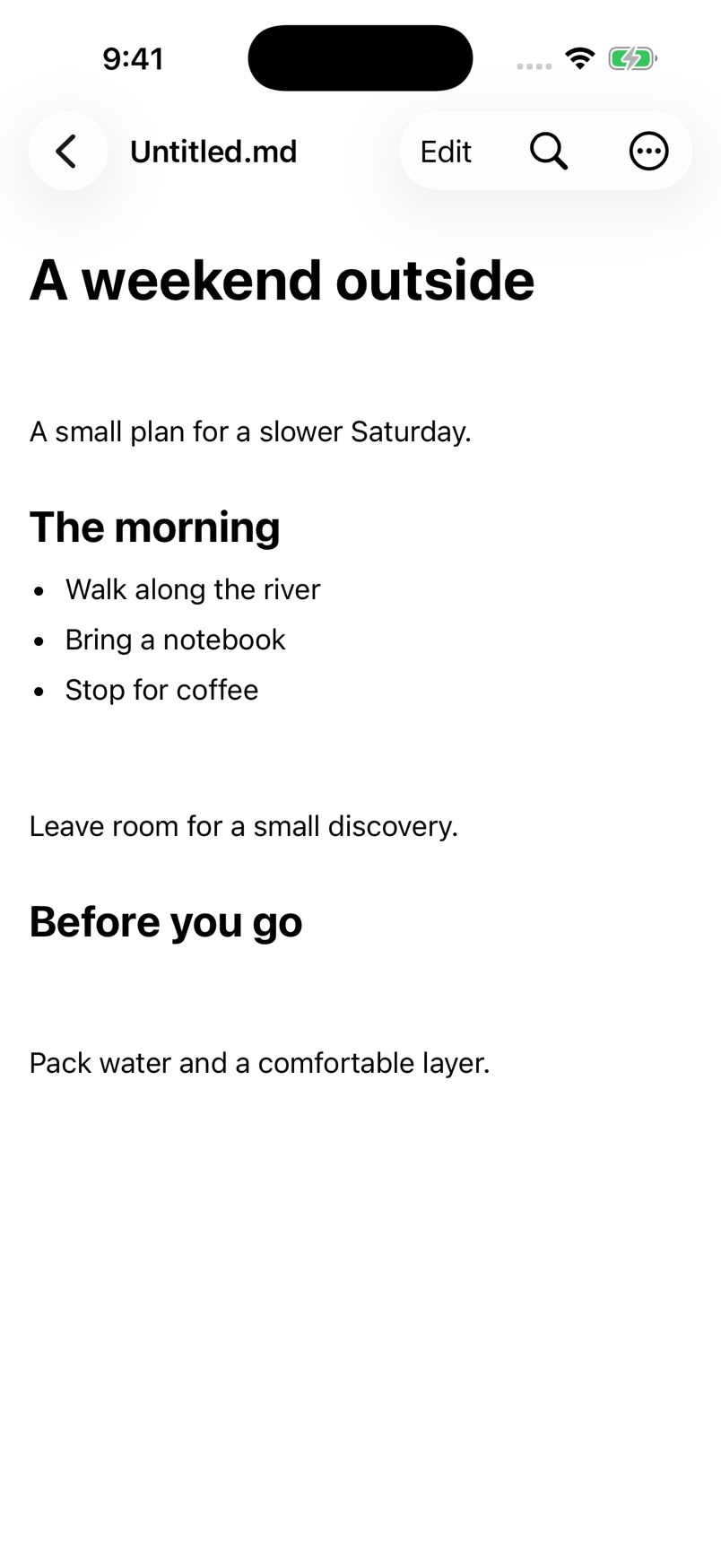
- Choose Read above the document to check the preview.
What to expect. Treo creates Untitled.md in its Documents folder, adding a number if the name is already used. Save writes to the file; computer delivery is reported separately.
Open, edit, and read a file
- In Library, tap + and choose Browse Files.
- Select a Markdown or text document in the Files picker.
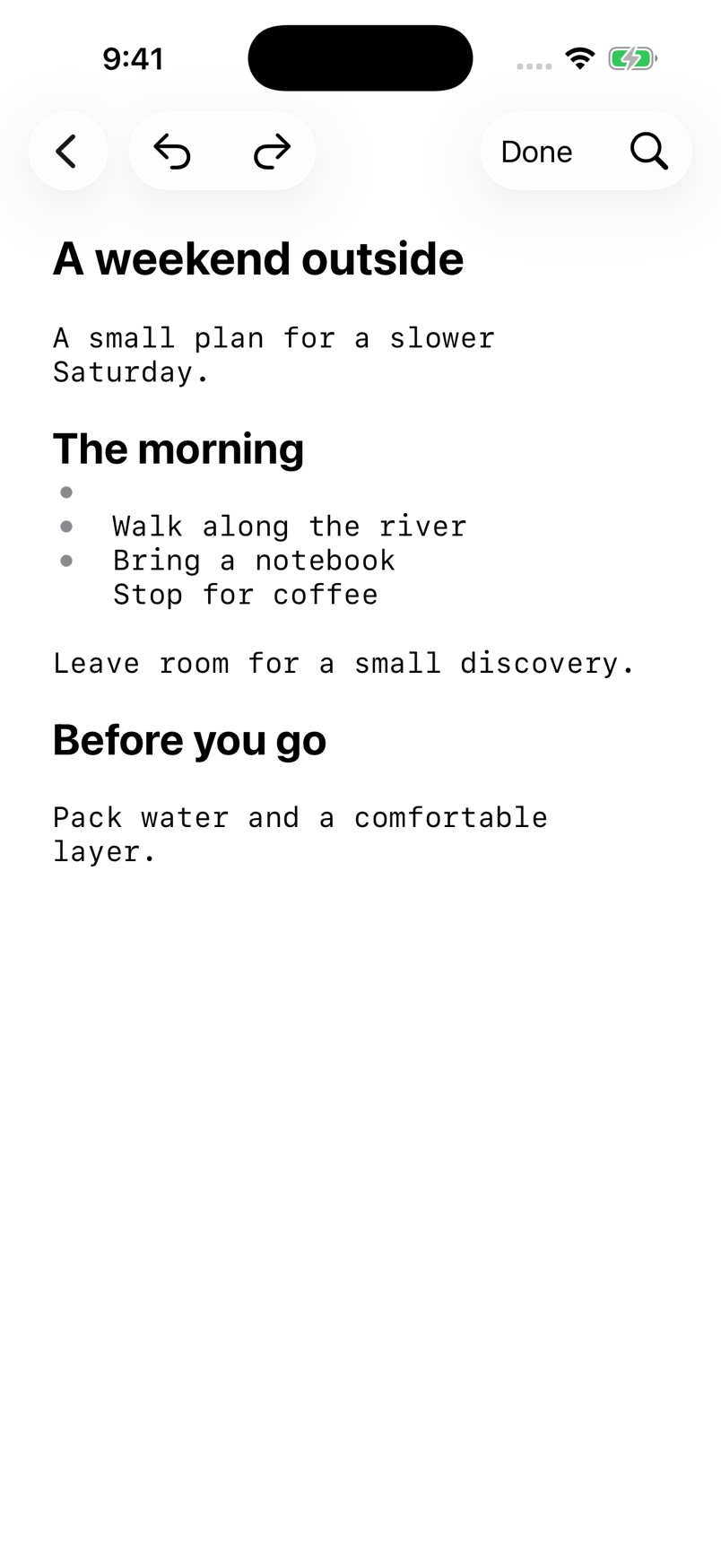
- Choose Edit above the document.
- Change the text. More options includes Undo and Redo.
- Tap Save.
- Choose Read to leave editing and view the saved document.
What to expect. The document reflects the saved text. Switching to Read also saves pending edits. If saving fails, use Retry save or Stay in document; your editor remains open.
Adjust reading and find diagnostic logs
- Open Settings.
- Under Theme, choose System, Light, or Dark.
- Adjust Reading text and Editor text.
- Under Open documents in, choose Read or Edit.
- Under Data & support, open Diagnostics, recent files & about.
- Choose Export diagnostic logs, then Prepare logs.
What to expect. Appearance changes apply immediately. Review logs before sharing: they may include file paths, device IDs, and computer addresses. Clear recent files removes the list without deleting original documents.
Connect a Syncthing computer
- Have a Syncthing computer you control and its shared Folder ID ready.
- Open Sync and choose Set up Syncthing.
- Enter Computer name.
- Paste the computer's Device ID, or choose Scan QR code and scan Syncthing → Actions → Show ID on the computer. Allow camera access if requested.
- Open Advanced connection options and enter Hostname or IP address, or enable a discovery method. The usual Sync port is 22000.
- Tap Continue.
- On the computer, add this iPhone as a Remote Device using the Device ID shown in Treo.
- In Treo, enable I approved this iPhone on my computer and tap Continue.
- Enter the exact Folder ID. Use Add another Folder ID if needed.
- On the computer, share each intended folder with this iPhone.
- Tap Save & connect.
What to expect. Treo saves the setup and starts connecting. Scanning fills the computer identity only; it does not approve the device or share folders. A Folder ID is not a Device ID, folder name, or path. If scanning is unavailable, choose Enter or paste the ID instead.
Keep a shared folder available offline
- With Sync enabled, open a folder under Shared folders.
- Choose Manage offline availability · Entire shared folder.
- Turn on Keep folder on iPhone.
- Keep the computer reachable while files download.
- Check Available offline and View transfers.
What to expect. Treo downloads regular files throughout the shared folder, including subfolders. Downloaded files can be opened offline. Turning the preference off keeps existing files and unsent edits; queued downloads can be cancelled separately in Transfer activity.
Choose what to keep after conflicting edits
- In Sync, open the file needs review notice.
- Choose a file in Review versions.
- Compare This iPhone with the computer preview. Use Load computer preview when available.
- Choose Keep both files to preserve separate copies, or choose Use iPhone or Use computer and review the confirmation.
- Choose Later if you are not ready to decide.
- Check Transfer activity for delivery.
What to expect. Previews are read-only. Replacing a version asks for confirmation. Deletion conflicts use different action labels. A recovery copy is retained before local replacement or deletion; a saved choice is not proof of computer delivery.
Control sync behavior
- With Syncthing enabled, open Settings → Sync behavior.
- Choose whether to enable Automatic background sync.
- Review Merge non-overlapping text edits and Propagate file renames and deletions.
- Open View transfer activity to check pending or confirmed revisions.
What to expect. iOS decides when background work can run; continuous connections and schedules are not guaranteed. Open Treo to continue now. Automatic merging needs verified common history; overlapping edits remain in Review versions.
If something goes wrong
A recent file will not open?
Open Library, tap +, and choose Browse Files to locate it again and renew access. Check that its file provider is available.
A change will not save?
Keep the editor open and review the displayed error. Check the file location and provider connection before trying again.
Keeping or sharing a copy?
Use Share File or Duplicate from More options. Clear recent files in Settings → Data & support → Diagnostics, recent files & about; this removes the list, not the original documents.
Local-network connection denied?
Review Treo’s Local Network permission in iOS Settings. In Sync, open Connection & folder help and choose Try connection again. Confirm the computer is reachable and shares the same Folder ID.
Camera access denied?
Enter or paste the computer Device ID instead. To scan later, review Treo’s camera permission in iOS Settings. Scanning does not replace approving the device or sharing folders on the computer.
Offline files or pending changes?
Open Transfer activity to inspect the status and available retry or cancel action. A local save is separate from computer confirmation. If files need review, compare their versions before choosing what to keep. Open Treo and make the computer reachable to continue; iOS may pause background work.
Contact North Star Gate
Include the app version, device model, iOS version, what you tried, and the error shown. Review screenshots and logs for personal information before sharing them.
