 North Star Gate
 Otus
OtusBefore you begin
Otus does not require an account. Retrieving feeds, articles, and images contacts publishers and other content hosts. Original web pages may use their own scripts and cookies.
Add a feed and read your first article
- On News, tap + or the Add Feed button in the empty list.
- Enter a website address or RSS feed address in Enter website or RSS URL.
- Choose a Category if you want one.
- Tap Add.
- If Discovered Feeds appears, tap the feed you want.
- Tap an article in News to read it.
What to expect. The feed is added and its articles appear in News. If no feed is found, obtain a working RSS address from the publisher and try that address.
Keep useful articles and narrow your list
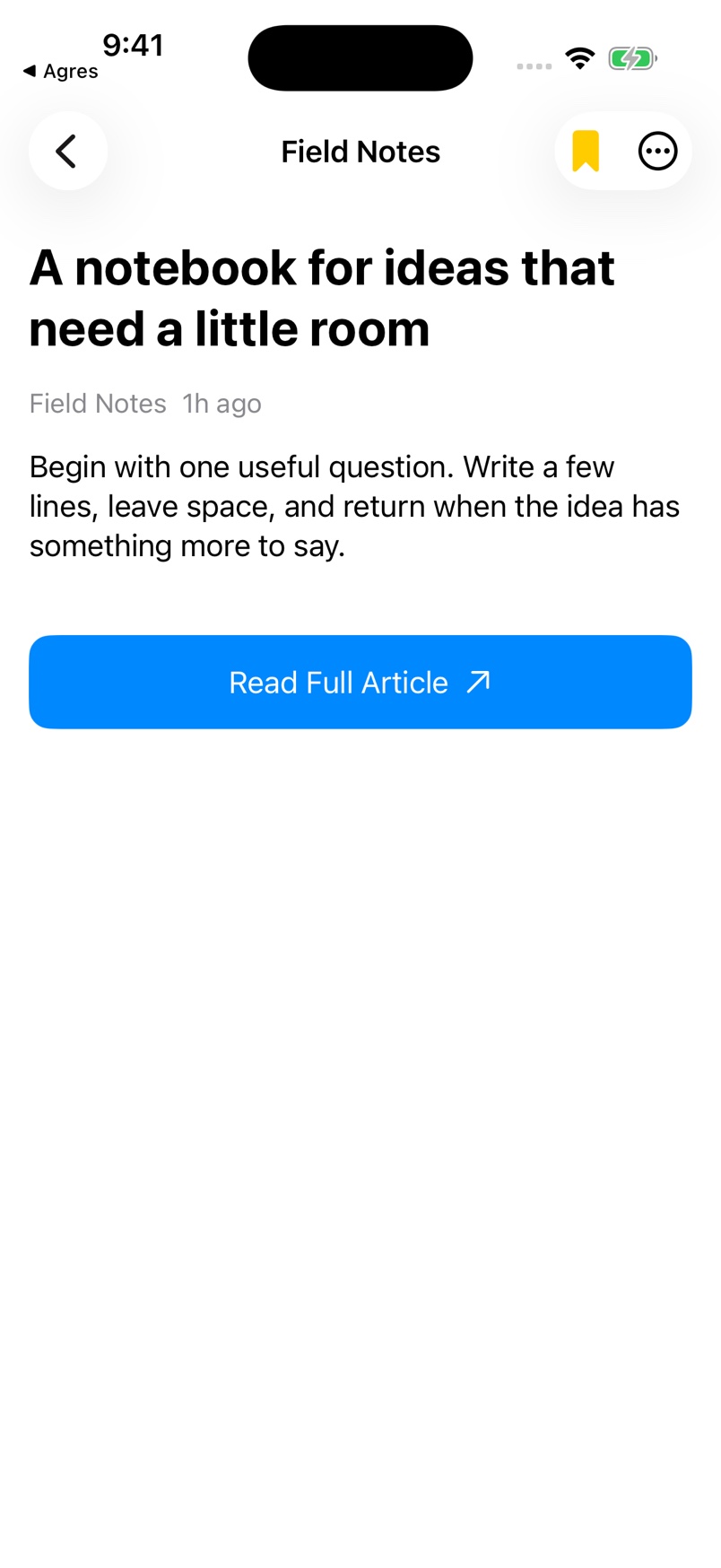
- Open an article.
- Tap the bookmark icon.
- Return to News.
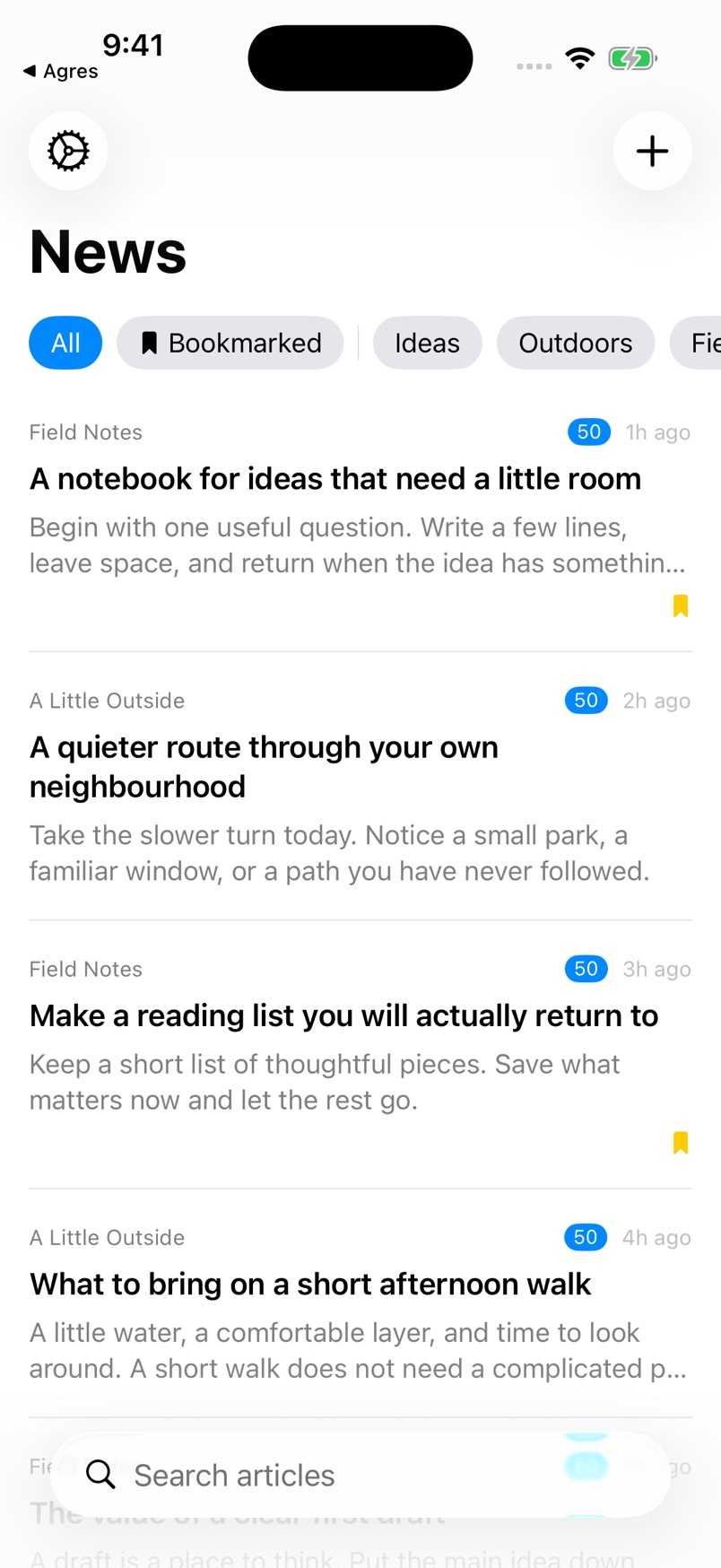
- Select Bookmarked to find saved articles.
- Select All, a category, or a feed when you want a different list.
- Enter text in Search articles to search.
- Pull down to retrieve new feed items.
- Swipe an article left to reveal Bookmark or Unbookmark.
- Tap the revealed bookmark action if you want to change its saved state.
What to expect. The selected filter controls the list. Reading, bookmarking, deleting, and other local interactions help adjust ranking alongside article age. Swiping an article right reveals Delete; a full swipe can delete it. Deleted articles are hidden from the normal list.
Choose a readable version of an article
- Open an article.
- Open the ellipsis menu.
- Under Display Mode, choose RSS Description, Extracted Content, Reader Mode, or Original HTML.
- If the content is incomplete, try Original HTML or Open in Safari.
- Use Share or Copy Link in the same menu when you want to pass on the article.
What to expect. The article uses the chosen display mode. Publisher content and access restrictions can affect which version is available.
Group feeds and adjust a source
- Open Settings using the gear button.
- Choose Categories.
- Tap +.
- Enter Category name.
- Tap Add.
- Return to Settings.
- Choose Manage Feeds.
- Open the feed you want to organize.
- Choose its Category.
- Set Active according to whether you want that feed to be active.
- Tap Done.
- Return to Settings.
- Choose Manage Source Domains.
- Open the publisher’s domain.
- Choose a mode under Show Articles As.
- Tap Save.
What to expect. Feeds appear under their assigned categories and the publisher uses the saved display preference. In Extracted Content, Select Content Blocks can adjust which page sections are kept or removed.
Transfer feeds and troubleshoot missing content
- Open Settings using the gear button.
- Choose Export OPML.
- Choose where to save the subscription list.
- When you want to import a list, choose Import OPML in Settings.
- Select an OPML or XML feed file.
- Review the Import Successful or Import Failed message.
- If an article fails to load, use Try Again or Open in Safari.
- To reset ranking settings, open Scoring Settings.
- Tap Reset to Defaults if you want the default scoring settings.
- For diagnostics, open View Diagnostic Logs in Settings.
- Read the action and confirmation before using any Data Management cleanup control.
What to expect. OPML transfers feed subscriptions; it is not a full backup of articles, bookmarks, or reading history. Cleanup actions can permanently remove stored data; the app does not offer a general undo for them.
If something goes wrong
No feed found?
Ask the publisher for its RSS address and add that address directly. Check that the feed is active in Manage Feeds.
An article looks incomplete?
Change Display Mode, try Original HTML, or choose Open in Safari. The publisher’s access restrictions still apply.
Moving your subscriptions?
Export OPML and Import OPML transfer your feed list, not a full backup of bookmarks or reading history. View Diagnostic Logs can help with feed failures.
Contact North Star Gate
Include the app version, device model, iOS version, what you tried, and the error shown. Review screenshots and logs for personal information before sharing them.
