 North Star Gate
 Gravitee
Before you begin
The game uses device motion for controls. You can play without signing in. Optional NSG ID sync uploads results and movement paths inside the game; these are not real-world GPS routes.
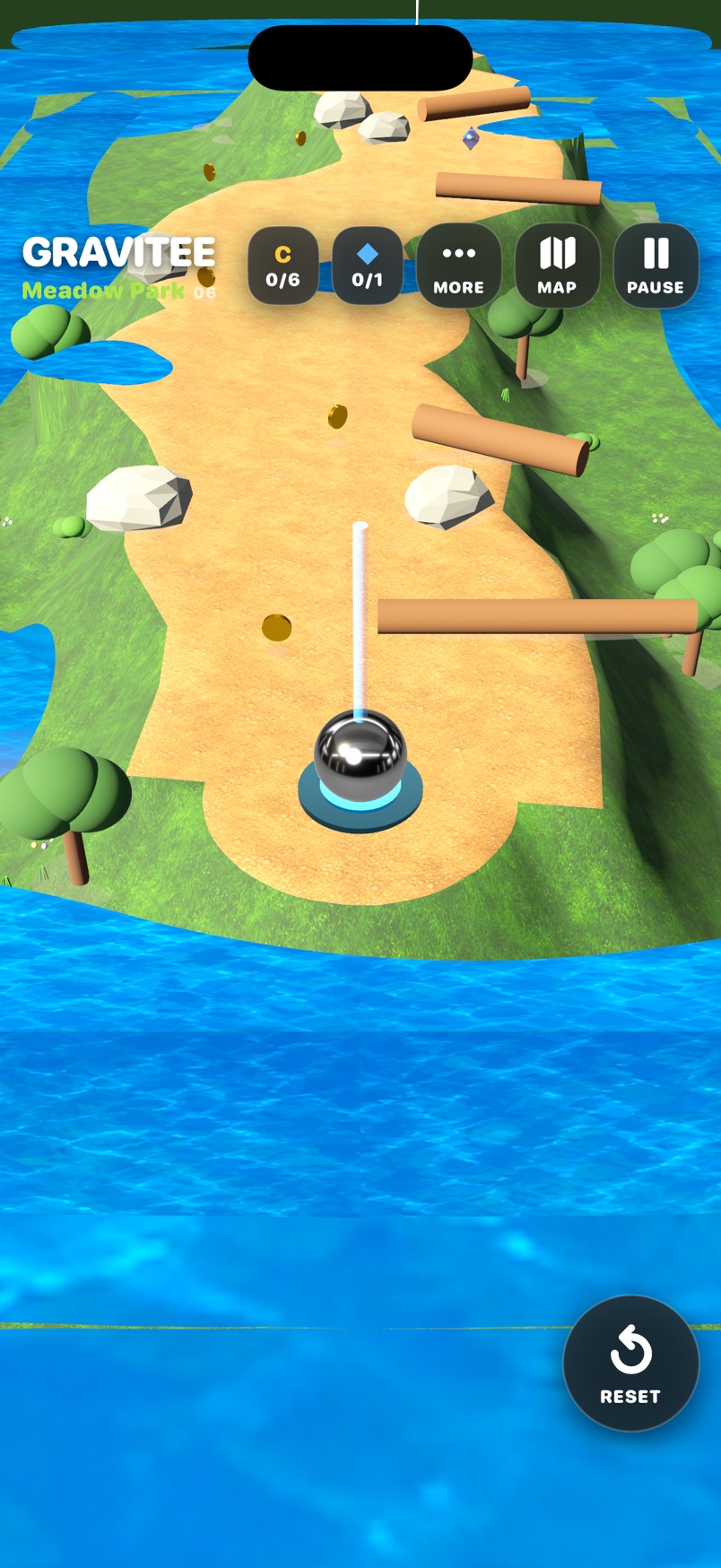
Roll toward the goal
- Open Gravitee to the course. No account is required.
- Wait for Preparing Course to finish.
- Tap Start Run if shown. In versions without that button, tap the course to activate the ball.
- Tilt the phone gently to steer around water and obstacles.
- Hold the phone level to slow down on flat ground.
- On slopes, counter-tilt as needed to control downhill movement.
What to expect. The ball moves and the camera follows it. On Simulator, drag on the course instead of tilting.
Plan your route
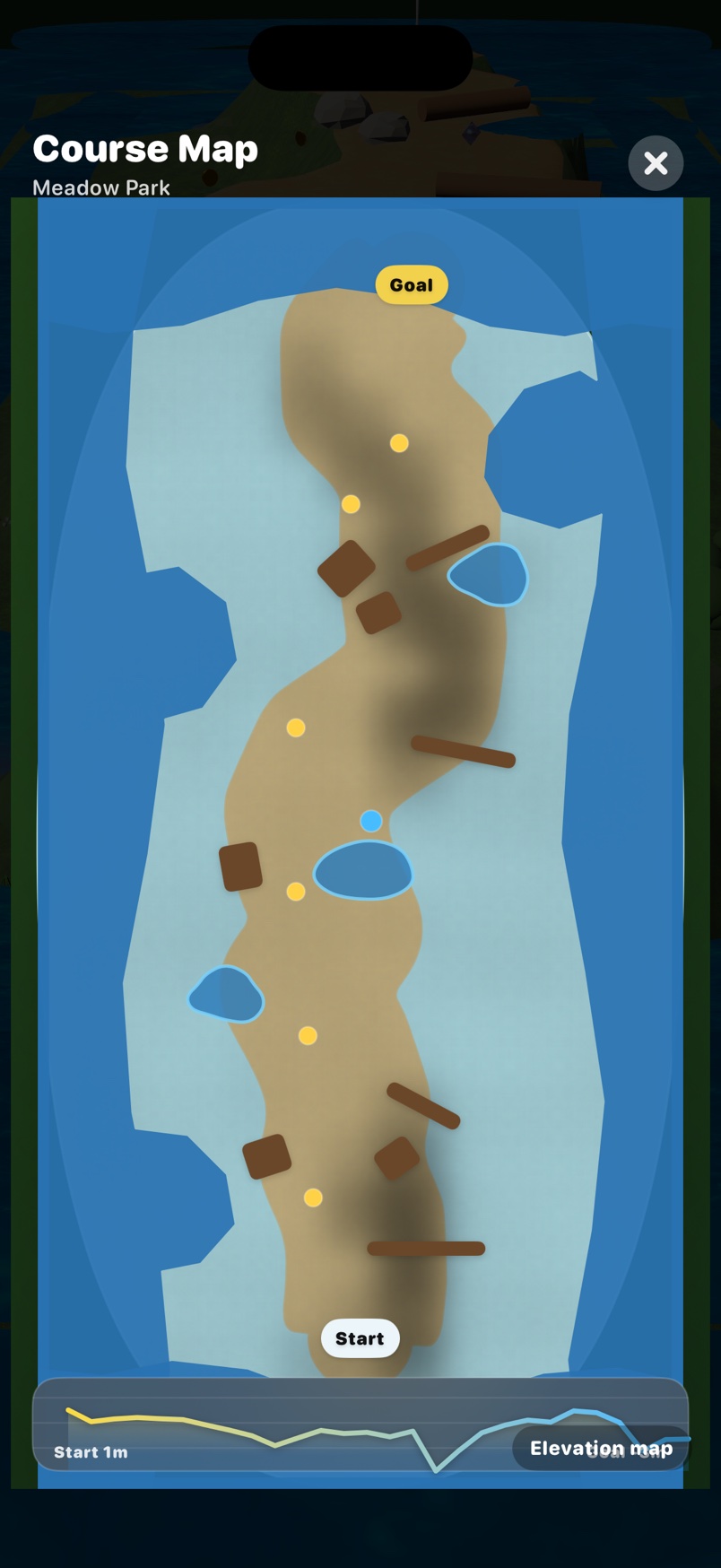
- With a course open, tap Map.
- Locate Start and Goal on Course Map.
- Inspect the water, obstacles and collectibles between them.
- Tap the close control (Close Map) to return.
What to expect. The full course overview shows the same course layout used in play.
Pause or retry a run
- During an active run, tap Pause.
- Tap Resume to continue that run.
- When you want to restart instead, tap Pause again.
- Tap Retry to restart the course.
What to expect. A restarted run begins at the course start. Checkpoint history is not a restart location.
Choose an unlocked course
- With the game open, tap More.
- Choose Course Library.
- Tap an unlocked course to open Course Detail.
- Tap Play Selected Course. For the active course, the button reads Retry Current Course.
- Wait for Preparing Course to finish.
- Tap Start Run if shown, or tap the course in versions without that button.
What to expect. The selected course loads. Completing a course unlocks its successor in the 50-course catalog.
Change your ball and trail
- With the game open, tap More.
- Choose Ball Cosmetics.
- Select an unlocked skin.
- Select an unlocked trail.
- Check that the selected options show Equipped.
- Tap Close Cosmetics.
What to expect. Your selection appears in the game. Additional ball skins unlock after 1, 3, 6, 10 and 15 course clears; additional trails unlock after 1, 4, 7, 11 and 16 clears.
Sync results and view global records
- With the game open and a network connection available, tap More.
- Choose Sign In and Sync. If already signed in, choose Account and Sync.
- If not signed in, tap Continue with NSG ID.
- Complete the NSG ID sign-in screen.
- Tap Sync Now in the Account & Sync panel.
- Read the sync status shown in the panel.
What to expect. The account panel reports sync status. Local results and replayable game paths upload, and global records download. Without a connection, records remain queued; reconnect and retry Sync Now.
If something goes wrong
Need another attempt?
Use Pause → Retry or Try Again after a failed run. A retry starts at the beginning of the course.
Looking for another course?
Open More → Course Library and select an unlocked course. Completing a course unlocks its successor.
Results have not synced?
Reconnect and use Account and Sync → Sync Now. Pending local runs can upload when connectivity returns; North Star Gate support can help with account questions.
The ball will not move
Wait until Preparing Course disappears, then tap the course. If Paused is shown, tap Resume. Use a physical device for tilt control; Simulator uses a drag gesture.
No sound?
Open More and check Sound On or Sound Off. Tap the sound option to toggle it. Gameplay audio respects the device silent setting.
No global records or locked cosmetics?
Local play does not require login. Global records need NSG ID and a connection. Cosmetics unlock with course clears; Locked options cannot be equipped yet. Do not delete the app to fix missing records because unsynced progress is stored locally.
Contact North Star Gate
Include the app version, device model, iOS version, what you tried, and the error shown. Review screenshots and logs for personal information before sharing them.
