 North Star Gate
 Grannus Wood Stove
Before you begin
Records stay on your device. Optional city search and temperature charts use Open-Meteo over the internet. File dialogs let you choose where to export or import data; the app uses English control labels.
Record your first burn
- From the app’s tab bar, open Burn.
- Under Start New Burn, set Start Date.
- Enter a positive number in Firewood Count, or a positive weight in Firewood Weight (g).
- Choose Start Burn.
What to expect. Active Burn shows the session you started. You can add optional time, scrap weight, and temperatures before starting. If a burn is already active, finish it using the batch controls before starting another.
Create a rack and shelf
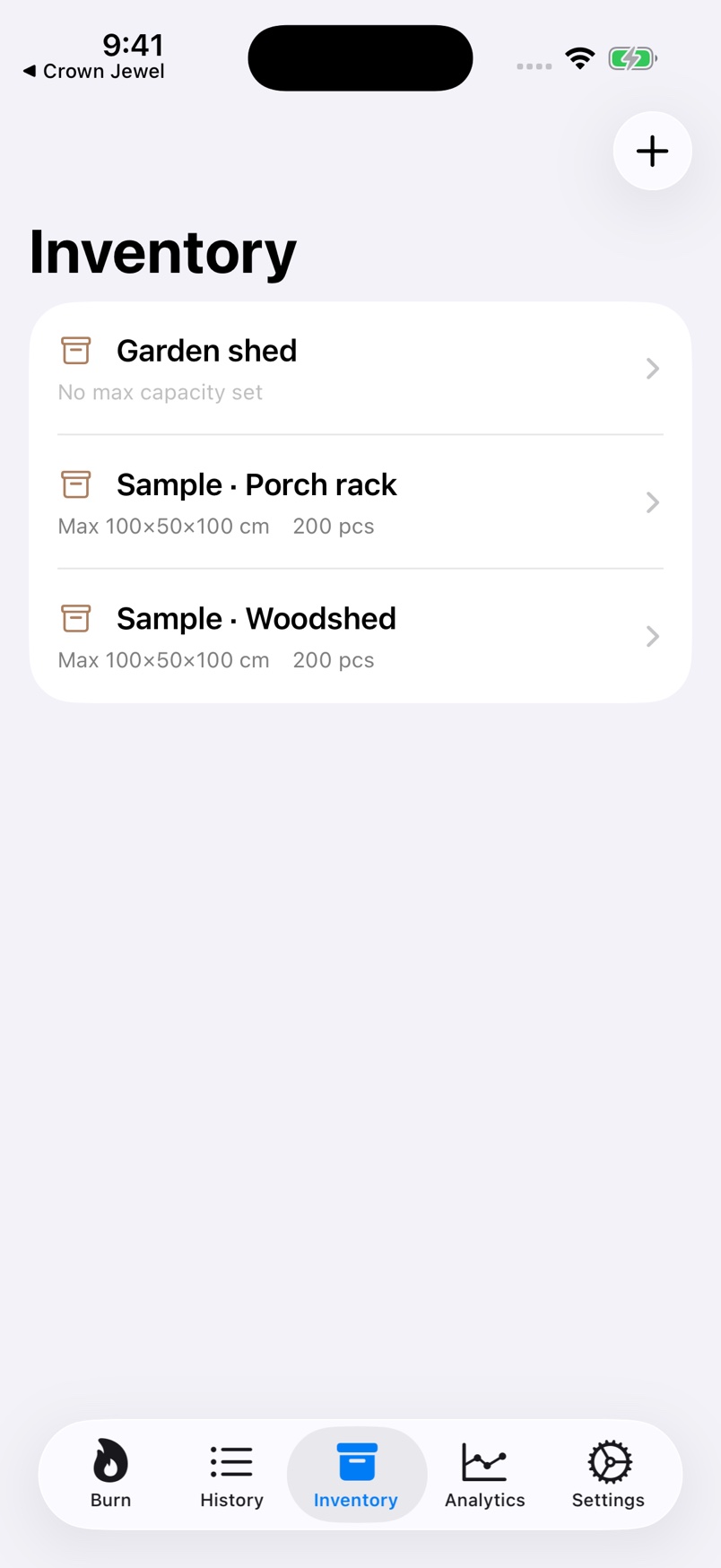
- From the tab bar, open Inventory.
- Choose the plus button or Add Rack in the empty list.
- Enter Rack Name.
- Choose Save.
- Open the new rack.
- Choose the plus button or Add Shelf in the empty list.
- Enter Shelf Name.
- Optionally enter Wood Type (e.g., Oak, Cherry).
- Choose Save.
What to expect. The shelf is ready for measurements. To record when wood was stocked, enable Has Stock Date in the shelf editor and set Stock Date before saving.
Measure remaining firewood
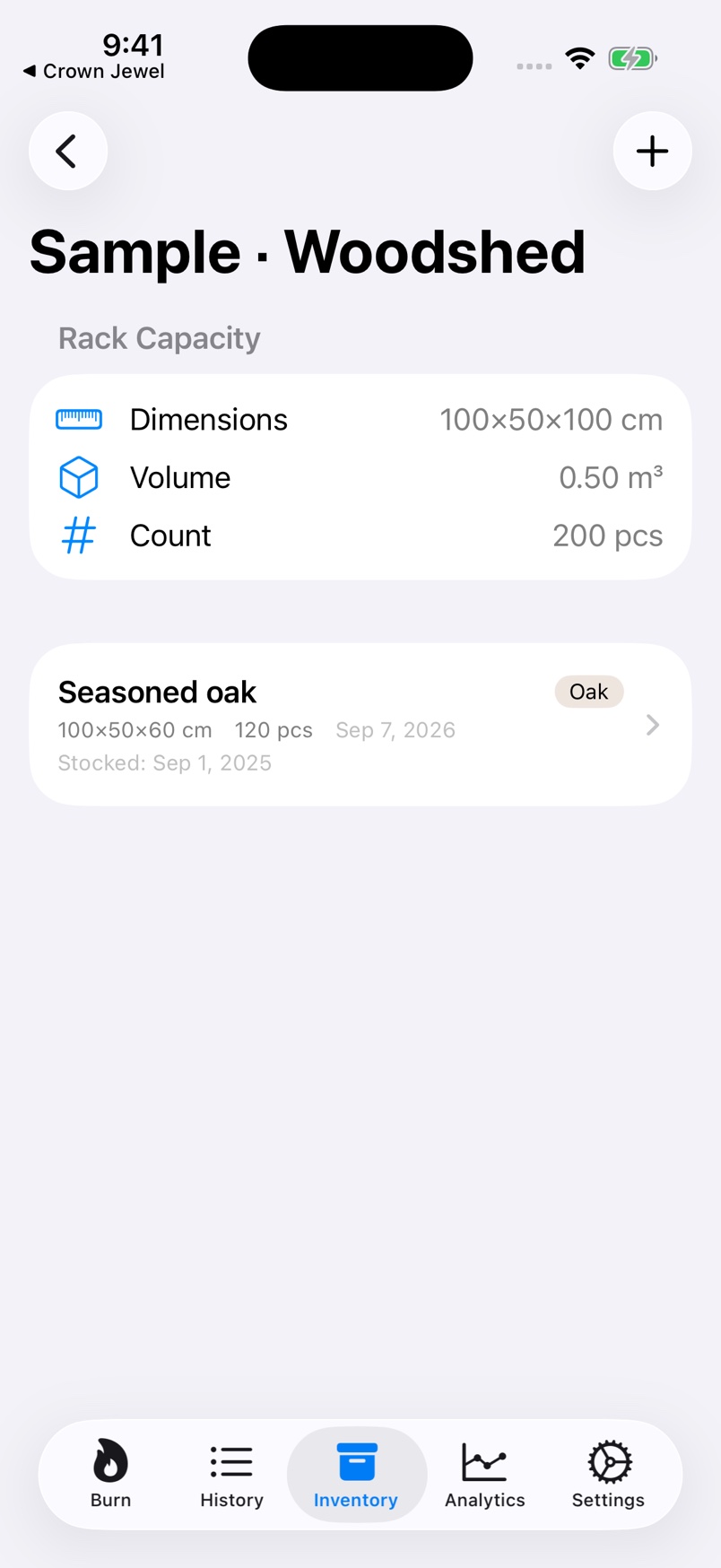
- From the tab bar, open Inventory.
- Open the rack containing your shelf.
- Open the shelf.
- Choose the plus button or Add Inventory in the empty view.
- Set Date.
- Enter Width in centimeters.
- Enter Depth in centimeters.
- Enter Height in centimeters.
- Optionally enter Firewood Count if you counted the pieces.
- Choose Save.
What to expect. The shelf shows the latest measurement and its History. A blank count is estimated from dimensions. Adjust Pieces per m³ and Weight per Piece (g) in Settings, then choose Save Settings to change the conversion values.
Refill or finish an active burn
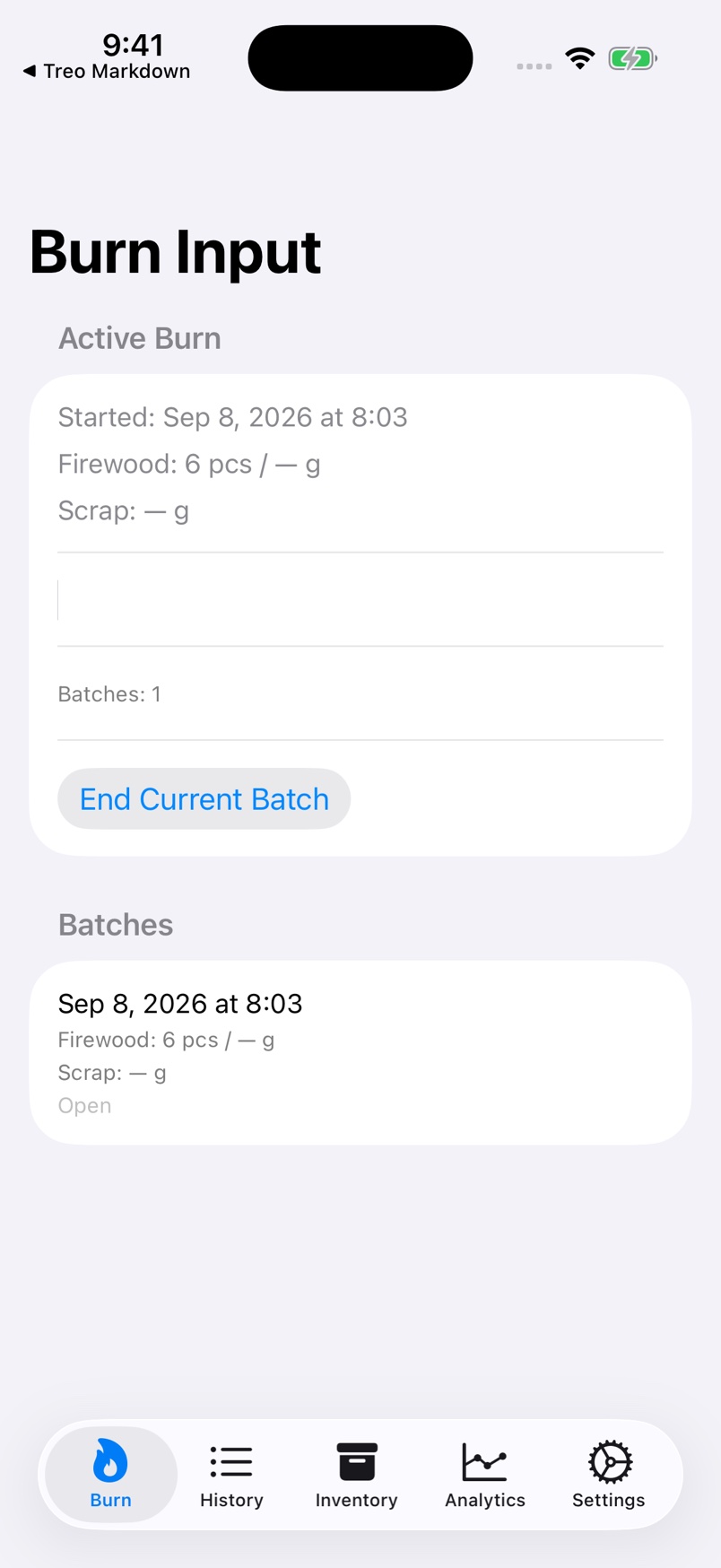
- With a burn already active, open Burn.
- Choose End Current Batch.
- Under Remaining Stock, enter any remaining Firewood Count.
- Enter any remaining Firewood Weight (g), if you measure weight.
- Enter any remaining Scrap Weight (g), if applicable.
- Choose End Burn to finish, or Start New Batch to continue.
- If continuing, enter the next load’s Firewood Count or Firewood Weight (g) in Add Batch.
- Choose Save for the new batch.
What to expect. End Burn saves a completed session for History. Start New Batch keeps the burn going with a new load. Enter zero for no remaining stock rather than leaving a quantity unknown.
Compare consumption and temperature
- After saving completed burns, open Settings from the tab bar.
- Open Location under Weather.
- Search for your city.
- Select the matching city result.
- Open Analytics from the tab bar.
- Choose a Time Unit.
- Select the date, month, or season you want to review.
- Use Refresh Weather if temperature data is missing.
What to expect. The selected period shows consumption and available temperature data. Weather retrieval needs an internet connection. Burn entries need end quantities for consumption calculations.
Export and restore an Excel backup
- From the tab bar, open Settings.
- Choose Export to Excel....
- Save the .xlsx file using the system file dialog.
- To restore a saved backup, choose Import from Excel....
- Select the backup file.
- Read Import Data?: importing replaces all existing data and cannot be undone.
- Choose Import only when you are ready to replace the current records.
What to expect. An export saves a copy; a confirmed import replaces the app data. Keep the export before importing. On iOS, Database → Change Location... exports a database copy without relocating the live database. Export Debug Logs... shares diagnostic information when needed.
If something goes wrong
Start Burn is unavailable?
Enter a positive Firewood Count or Firewood Weight (g), then try again.
Temperature data is missing?
Set a city in Settings → Location, check your connection, and use Analytics → Refresh Weather.
Before restoring a backup
Use Export to Excel... first. Import from Excel... replaces all existing data. On iOS, Change Location... exports a database copy and keeps the live database on the device.
Contact North Star Gate
Include the app version, device model, iOS version, what you tried, and the error shown. Review screenshots and logs for personal information before sharing them.
